HP Laptop Monitor Issues: Common Causes and How to Solve Them
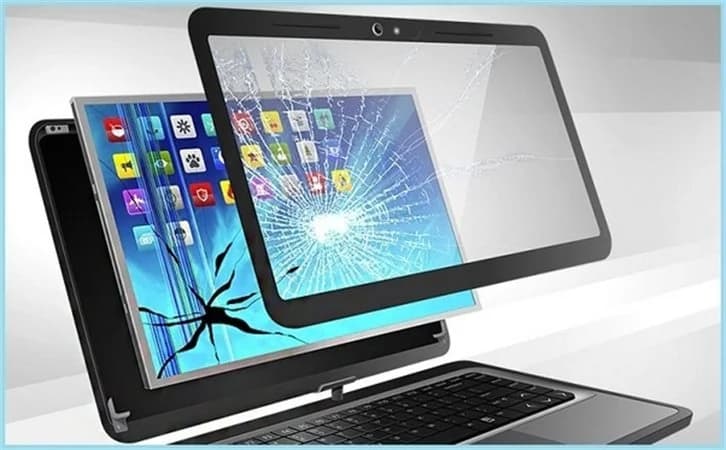
It can be really annoying to have hp laptop monitor problems especially when your laptop is important for business, study or entertainment. Display difficulties can be a sudden occurrence and can be as mild as flickering of the screen and variations in brightness to major problems such as a black line on laptop screen hp devices sometimes suffer after lengthy use.
These may sound scary, but many display problems can be recognized and fixed without immediately resorting to replacing the laptop . GadgetXpedia knows that most of the time a user would look for a practical solution rather than a pricey repair. In this tutorial, we’ll go over the most common reasons why your HP screen might be acting up, some troubleshooting steps you can take yourself, and when to call in the professionals.
What Is The Issue With HP Laptop Monitor?
There are a number of things that can cause Hp laptop monitor issues, including software conflicts, outdated display drivers, loose internal connections or physical damage to the screen. To find the correct remedy, you have to get to the base of the problem.
Some people report flickering that comes and goes. Others have permanent faults on their screens, including vertical or horizontal lines. Sometimes it can be fixed by tweaking something in the program , other times it can require swapping out the hardware . It depends on how bad the problem is .
A frequent issue is the presence of a black line on laptop. These lines might occur unexpectedly or can get worse over time and damage the visibility and overall usability.
Common Causes of HP Laptop Screen Problems
Old or Damaged Display Drivers
Display drivers are software programs that enable the operating system to interface with the graphics hardware in your laptop. When drivers are outdated or corrupted, users may face issues such as flickering, screen freezing, resolution problems, or other HP laptop display problems.
In many cases, updating the display drivers through official HP support channels or the Windows Device Manager will correct display anomalies caused by software.
Physical Damage to Screen
LCD panel damage can occur from accidental drops or severe pressure/impacts. In such cases, hp laptop screen with a black line may have a defective internal panel. Liquid damage and cracks can potentially cause permanent display faults requiring a replacement.
Loose Display Cable Connections
The display ribbon cable from the motherboard to the screen might come free from continuous opening and closing of the laptop lid over time. This can cause your hp laptop monitor to flicker intermittently, display garbled graphics or have constant problems.
The technicians can inspect and replace these parts during the service.
Graphics hardware issues
Sometimes the graphics processing unit (GPU) itself may be to blame. When the GPU begins to degrade, users may experience visual abnormalities, unexpected crashes and repeated black line on laptop screen hp symptoms.
How to Repair HP Laptop Screen Problems?
Several troubleshooting procedures might help narrow down whether the problem is software or hardware related.
First reboot the laptop and see whether the display problem still exists. Sometimes rebooting will fix temporary issues.
Then, plug the laptop into an external monitor. If the external display works fine then the problem is with the laptop screen or the connection inside the laptop. But if both screens are doing the same thing, it could be graphics drivers or the GPU.
Updating Windows and reinstalling display drivers can help fix software conflicts that cause hp laptop monitor issues. Running HP’s built-in hardware diagnostics may be able to give you with more insight to possible hardware issues.
Advanced Troubleshooting Steps - GadgetXpedia always advises to back up essential data prior to doing advanced troubleshooting steps.
How to Prevent Black Line Issues on HP Laptop Screens?
Preventive care might help lessen the chances of seeing a black line on laptop screen that hp users often see.
Do not put heavy objects on the laptop lid. Pressure can damage the display panel. Use both hands to carefully open and close the screen, taking stress off internal cables and hinges.
Constant software upgrades help to keep operating system and graphics hardware compatible. Also, putting your laptop inside a sleeve or other protective covering while transporting it can help prevent unintentional impact damage.
Proper maintenance frequently means the increased lifespan of both the display and the device itself.
When to Take Your Car to a Professional Repair Shop?
Simple troubleshooting does not fix all hp laptop monitor issues. If the screen flickers constantly, lines spread, pixels are dead, the display is damaged or the graphics card has definitely failed, you will have to see a specialist.
If your laptop is still under warranty you may choose to call HP assistance for the most affordable choice. If your equipment is older, you will want to consider the expense of repair vs the worth of replacing the laptop totally.
GadgetXpedia states that users can ask for a diagnostic assessment before they approve any repairs, so they can make smart financial choices.
Summary
Hp laptop monitor issues don’t necessarily signify that your laptop is reaching the end of its life. Many display problems can be fixed with simple troubleshooting, such as dealing with software incompatibilities, updating drivers, or tightening loose connections.
Still, repetitive symptoms such as a constant black line on laptop screen hp devices could signal underlying hardware faults requiring professional repair. Knowing the causes, taking preventive actions, and responding immediately when problems develop will help maintain your laptop’s performance and increase its usage for years to come.